How to Create a Leelu.ai Account
We will see how we can create an account on Leelu.ai
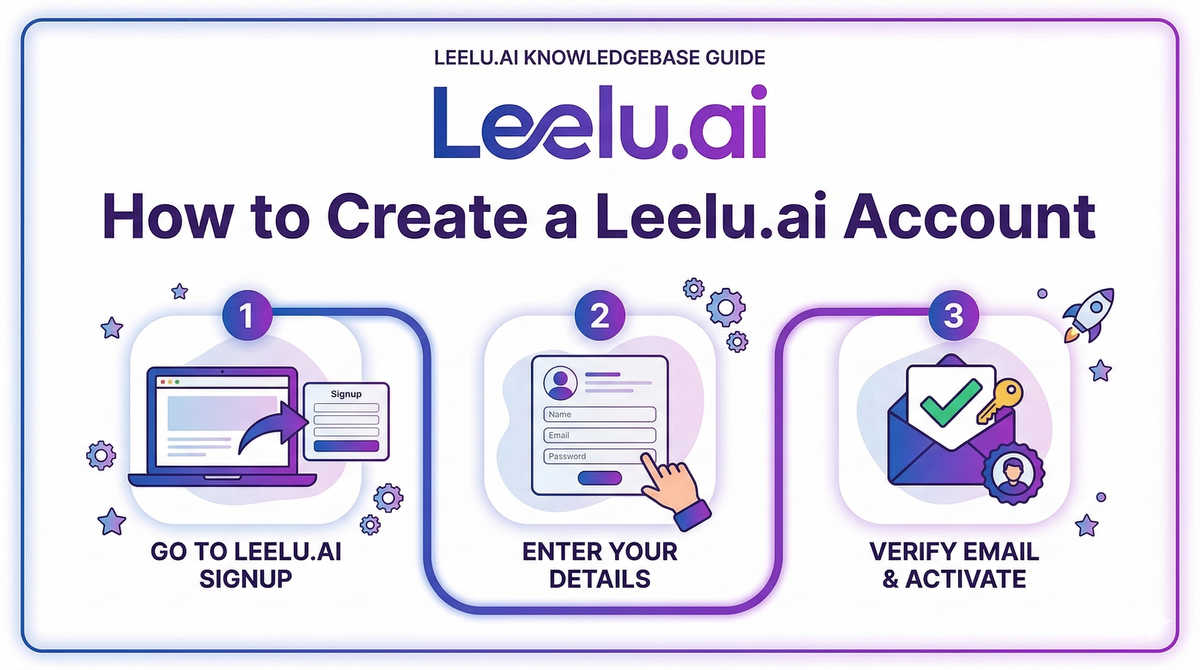
Creating a Leelu.ai account is the first step to automating your recruitment process with AI-powered candidate sourcing and engagement.
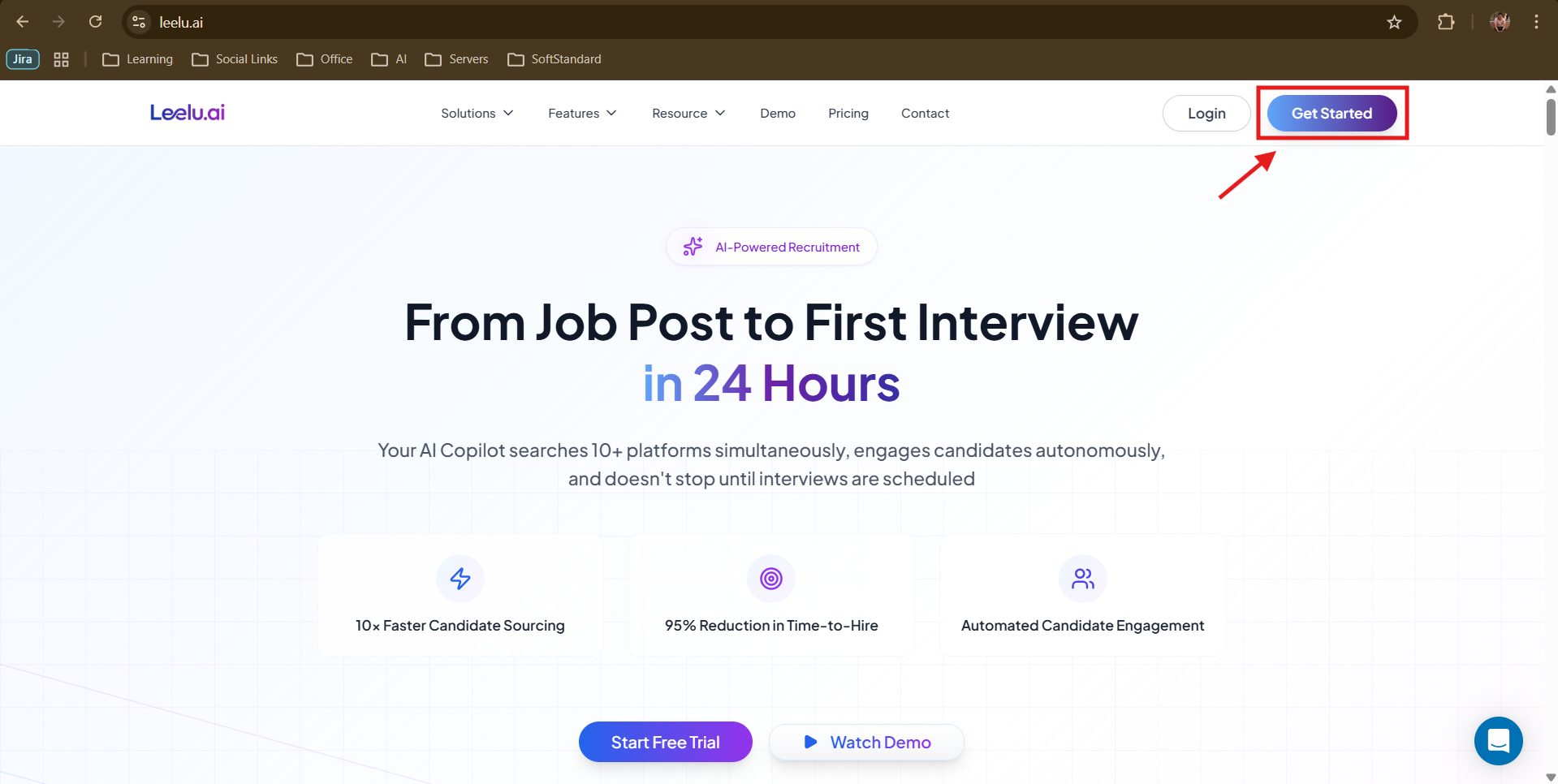
Sign Up Options
Leelu.ai offers two ways to create your account: Microsoft Single Sign-On (SSO) for instant access, or manual registration with your email address.
Method 1: Sign Up with Microsoft
If you use Microsoft Outlook or Office 365, you can sign up instantly:
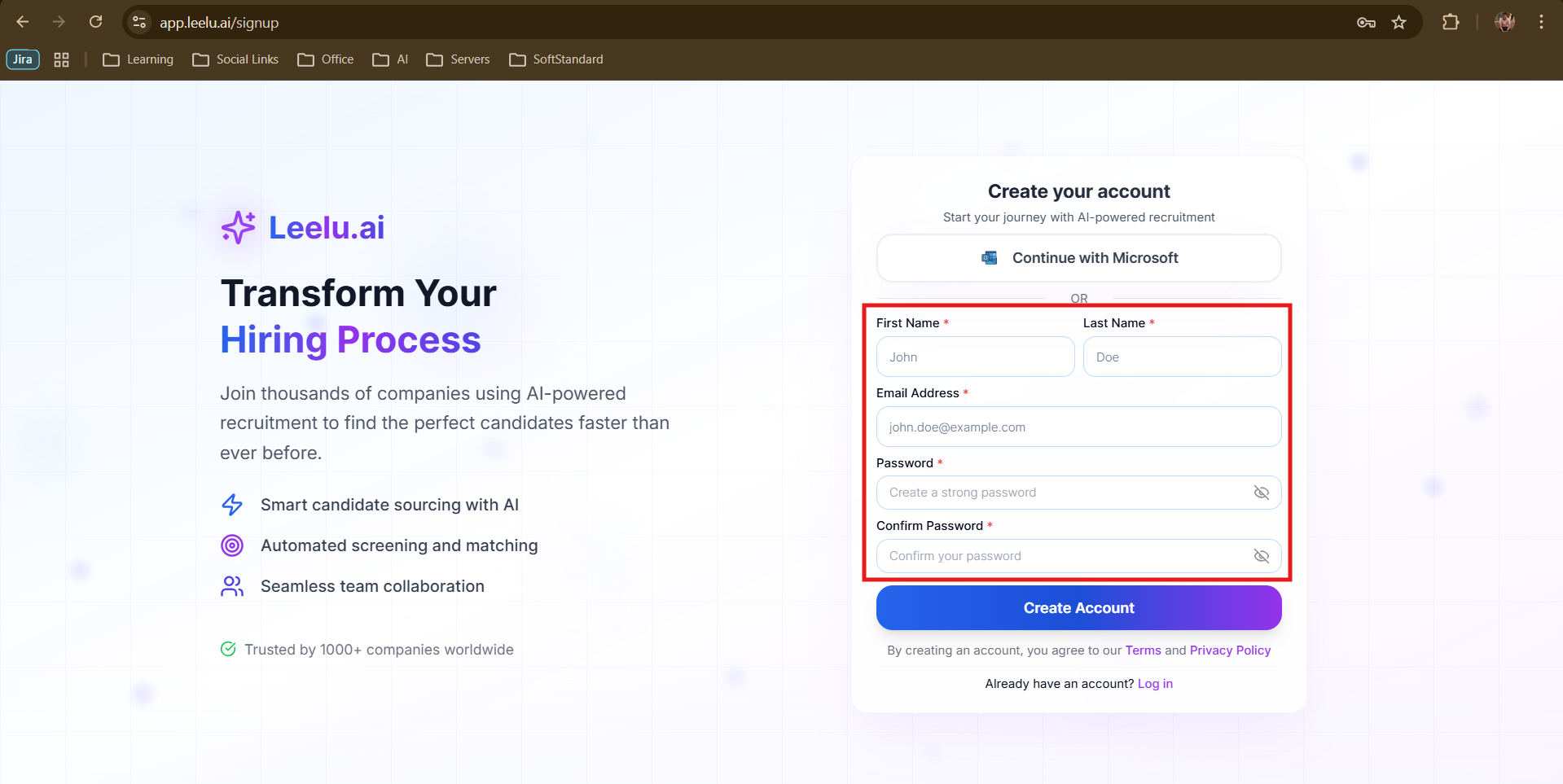
1. Navigate to app.leelu.ai/signup
2. Click the Continue with Microsoft button
3. Authenticate using your Microsoft credentials
4. Your account will be created automatically
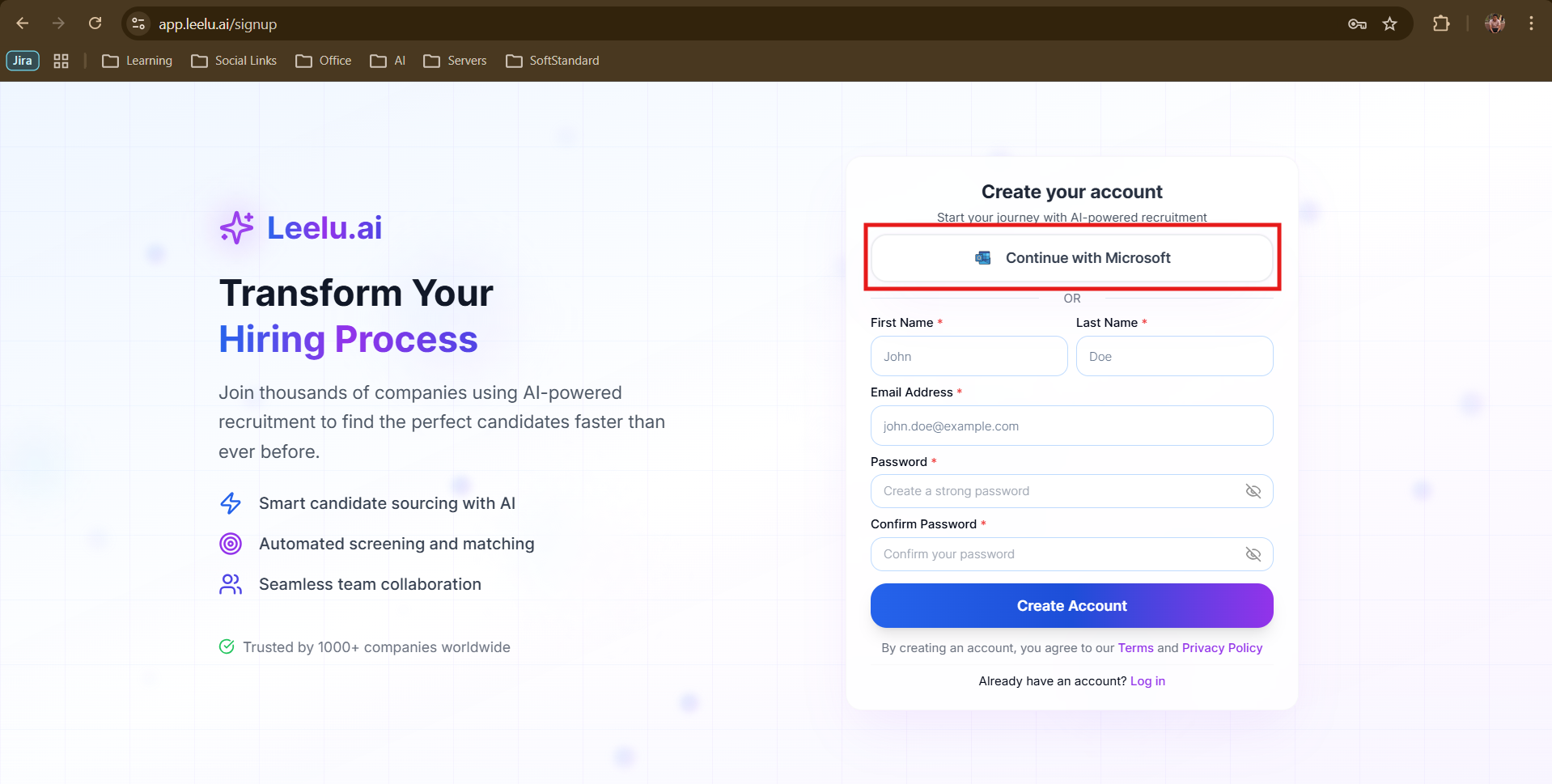
This method is fastest for teams already using Microsoft services.
Method 2: Manual Registration
For non-Microsoft users, you can create an account manually:
5. Go to app.leelu.ai/signup
6. Fill in your details: First Name, Last Name, Email Address, Password, Confirm Password
7. Click Create Account
The Verification Process
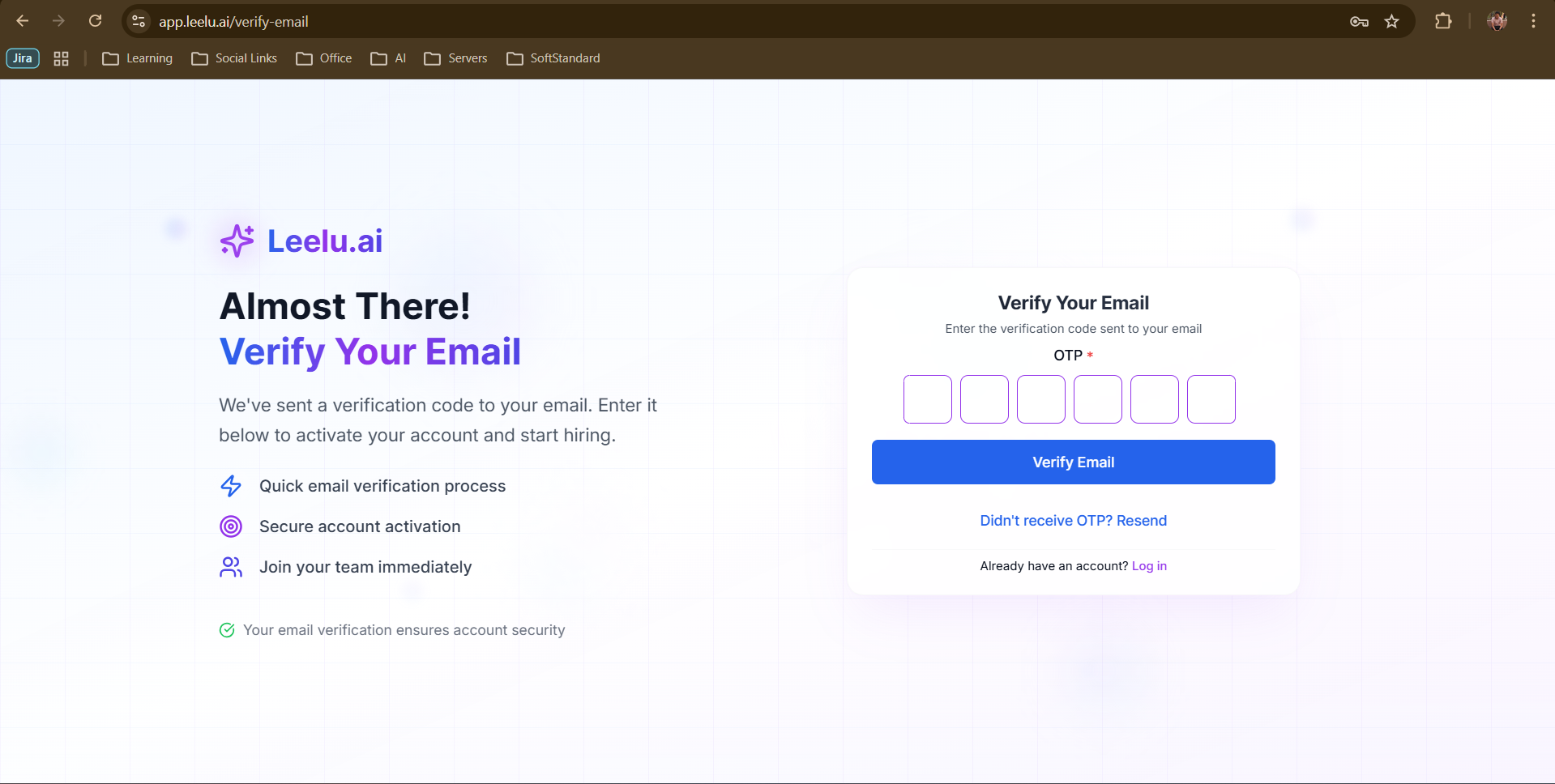
After creating your account, Leelu.ai automatically sends a 6-digit verification code to your registered email address.
Verifying Your Email
1. Check your email inbox for a message from Leelu.ai
2. Copy the 6-digit verification code (or keep the email open)
3. On the verification page at app.leelu.ai/verify-email, enter the code
4. Click Verify Email
The verification page will confirm your email is verified, and you'll be redirected to your dashboard.
Didn't Receive the Code?
If you don't see the verification email within a few minutes:
• Check your spam or junk folder
• Verify you entered the correct email address
• Click Resend on the verification page to request a new code
The verification code is valid for 15 minutes. If it expires, simply request a new one.
Security Note
Email verification protects your account by ensuring only you can access it. Never share your verification code with anyone.